Your site is now running at http://localhost:8080. The dev server watches for file changes and reloads automatically.
At this point you can start writing content in the content/ folder. When you’re ready to publish, continue below to push your site to GitHub and deploy it.
Setting Up Your GitHub Repository
Note
If you used Option A (GitHub Template) in step 1, your repository already exists and origin is already set. You can skip straight to Push Your Site.
To publish your site, you’ll need your own GitHub repository. This section is for Option B (direct clone) users.
Create the Repository
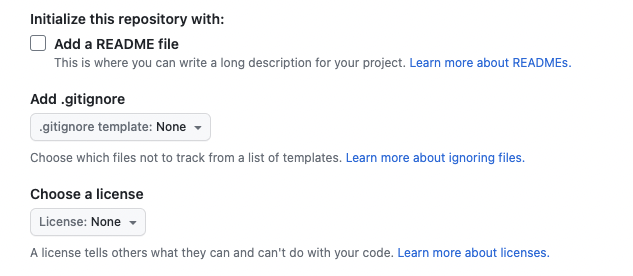
Create a new repository on GitHub.com. Do not initialize it with a README, license, or .gitignore — Quartz already includes these files, and duplicating them will cause merge conflicts on your first push.
Copy the repository URL from the Quick Setup page:
Connect Your Local Clone
Point your local Quartz at your new repository:
# Check current remotesgit remote -v# Point origin to your repositorygit remote set-url origin REMOTE-URL
Tip
You don’t need to add an upstream remote manually — npx quartz create already configured it for you. The upstream remote is used by npx quartz upgrade to pull in future Quartz updates.
Push Your Site
npx quartz sync --no-pull
This commits your content and pushes everything to your repository. For subsequent updates, just run:
npx quartz sync
Flags and options
For full help options, you can run npx quartz sync --help.
Most of these have sensible defaults but you can override them if you have a custom setup:
-d or --directory: the content folder. This is normally just content
-v or --verbose: print out extra logging information
--commit or --no-commit: whether to make a git commit for your changes
--push or --no-push: whether to push updates to your GitHub fork of Quartz
--pull or --no-pull: whether to try and pull in any updates from your GitHub fork (i.e. from other devices) before pushing